Collections and Folders
A collection is a named group of API requests. Inside a collection you can create folders to organise requests by feature, team, or workflow. Folders can be nested as deeply as you need.
Think of it like a filing cabinet: the collection is the drawer, folders are the dividers, and requests are the individual documents inside.
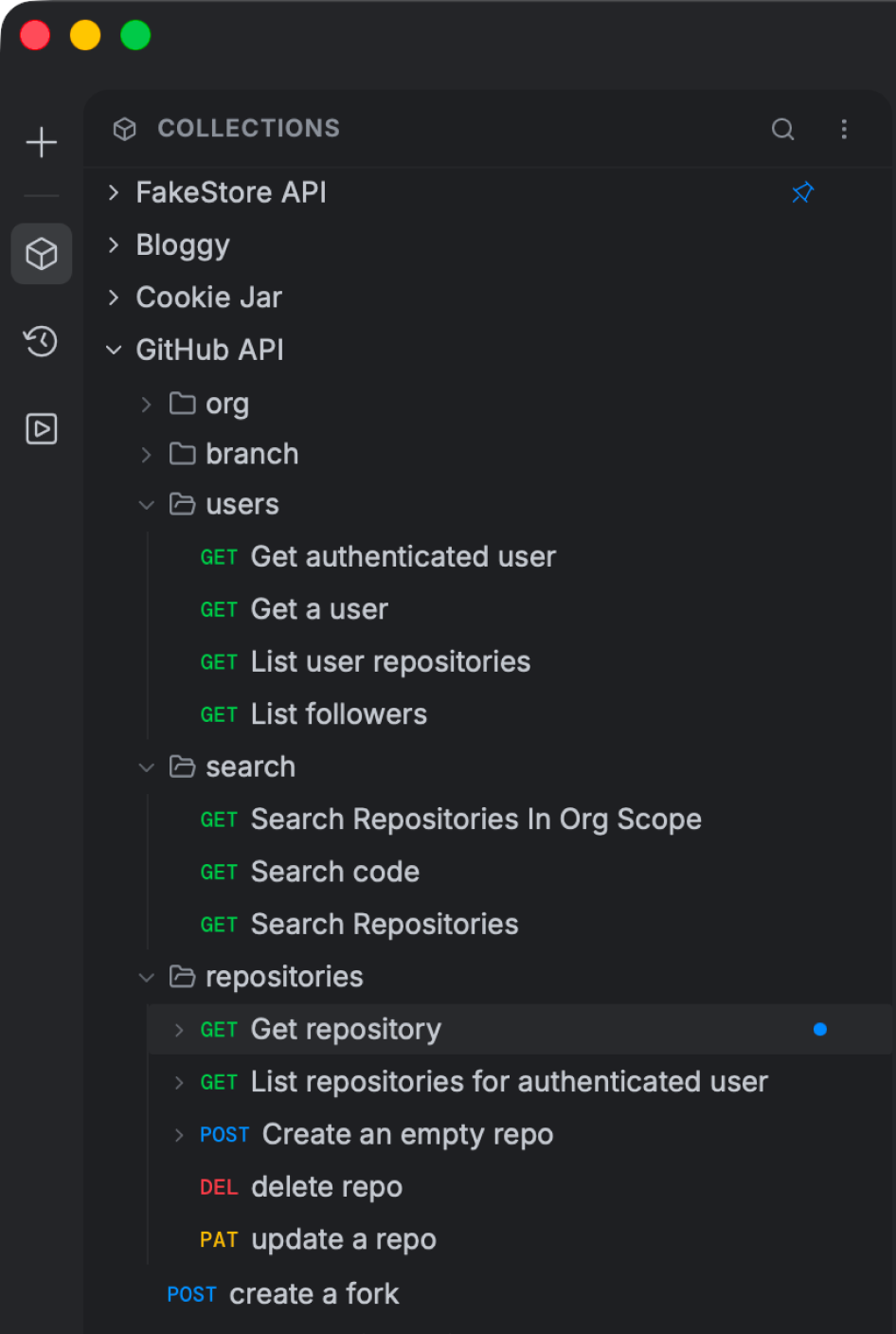
Creating a Collection
- In the Collections sidebar, click the + button at the top.
- Type a name for your collection and press Enter.
The collection appears in the sidebar, empty and ready for requests.
Creating a Folder
- Right-click any collection or existing folder.
- Choose New Folder.
- Type a name and press Enter.
Adding Requests to a Collection
From an open tab:
Build and configure your request, then press Cmd/Ctrl S or click More ▾ → Save. A dialog asks for a name and lets you pick the target collection or folder.
Directly from the sidebar: Right-click any collection or folder and choose New Request. A new blank request tab opens pre-assigned to that location.
Managing Collections, Folders, and Requests
Right-click any item in the sidebar to access its context menu:
| Action | What it does |
|---|---|
| Rename | Edit the name directly in the sidebar |
| Duplicate | Make an exact copy — useful when two requests are similar |
| Delete | Permanently remove the item and everything inside it |
| Move to… | Relocate to a different collection or folder |
| Export | Download the collection as a JSON file for backup or sharing |
| Copy as cURL | Generate a ready-to-paste terminal command for a request |
| Add to Favorites | Pin the collection to the top of the list for quick access |
Collection Variables
Each collection can hold its own set of variables — values shared across all requests inside it, separate from any environment.
This is useful for values that are specific to one API: a fixed apiVersion, a shared clientId, or a base path that never changes regardless of which environment you are targeting.
To add collection variables:
- Click the collection name in the sidebar to open the collection details.
- Go to the Variables tab.
- Add key-value pairs.
Use them in requests with {{variableName}} — the same syntax as environment variables. If the same variable name exists in both the environment and the collection, the environment value takes priority.
Collection-Level Authentication
Rather than configuring authentication on every individual request, set it once on the collection.
- Click the collection name in the sidebar.
- Go to the Auth tab.
- Configure your auth scheme (Bearer, OAuth 2.0, API Key, etc.).
- Ensure each request inside is set to Auth → Inherit.
When you update a token or rotate a key, change it in one place and every request in the collection picks it up automatically.
Exporting and Sharing a Collection
Right-click any collection and choose Export. Curlex saves a .json file containing all requests, folders, auth settings, variables, and scripts.
Secret variable values are blanked on export. The keys are preserved but the actual values are removed — safe to share or commit to version control.
To import a collection on another machine, click Import in the header bar and select the file.